


Step 1
Upload your source image
Choose a clear photo, product shot, sketch, or illustration.
Keep the Subject. Change Everything Else.
One portrait, six directions
Use this img to img style grid to compare line, texture, depth, and mood on one portrait, then reuse the selected prompt.
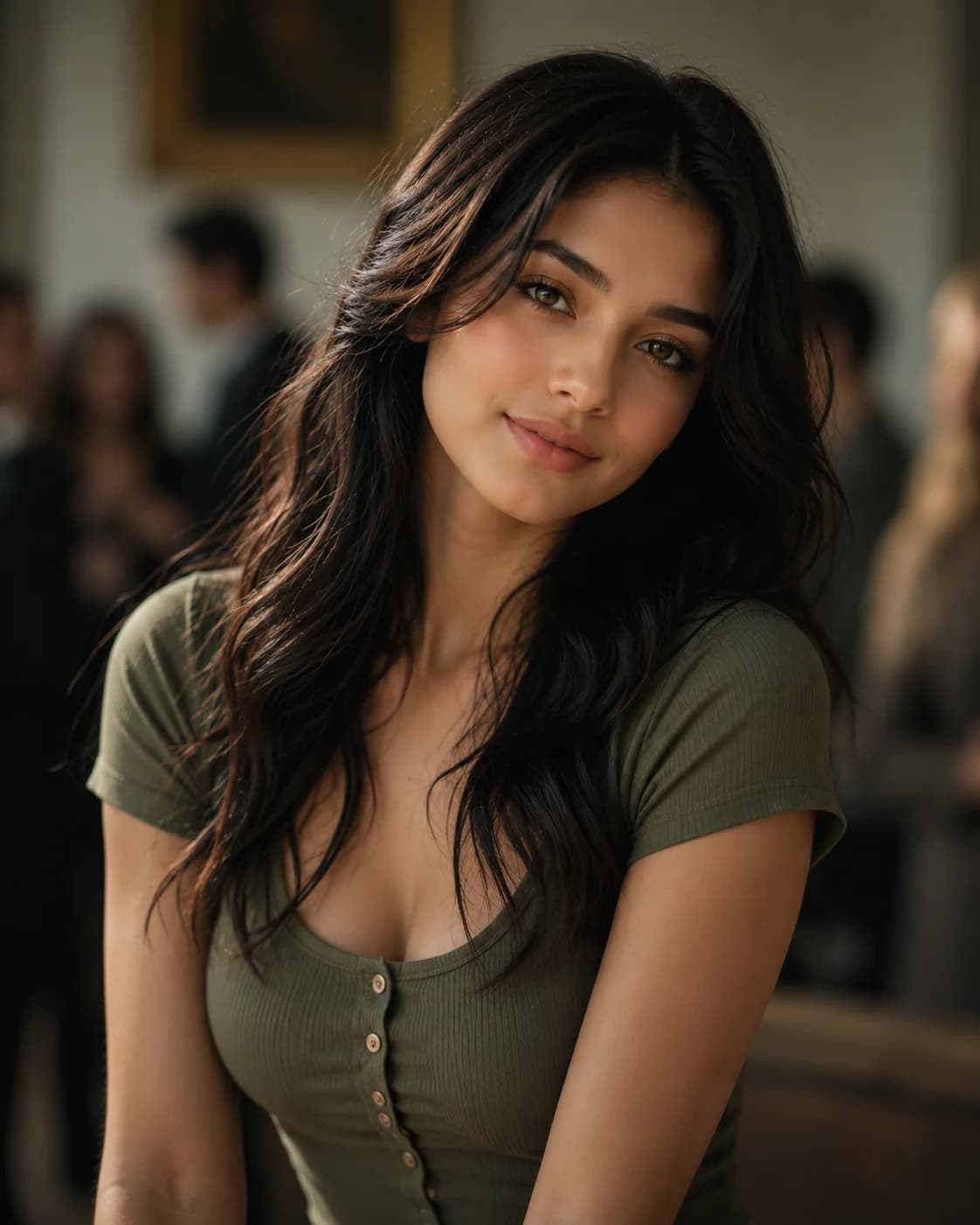
Prompt direction
Keep the face, hair, pose, and outfit recognizable. Render the portrait as a polished contemporary anime illustration.
Visible proof, not a promise
These img to img examples pair every source with its result. Check identity, composition, product shape, and creative range before choosing a direction.
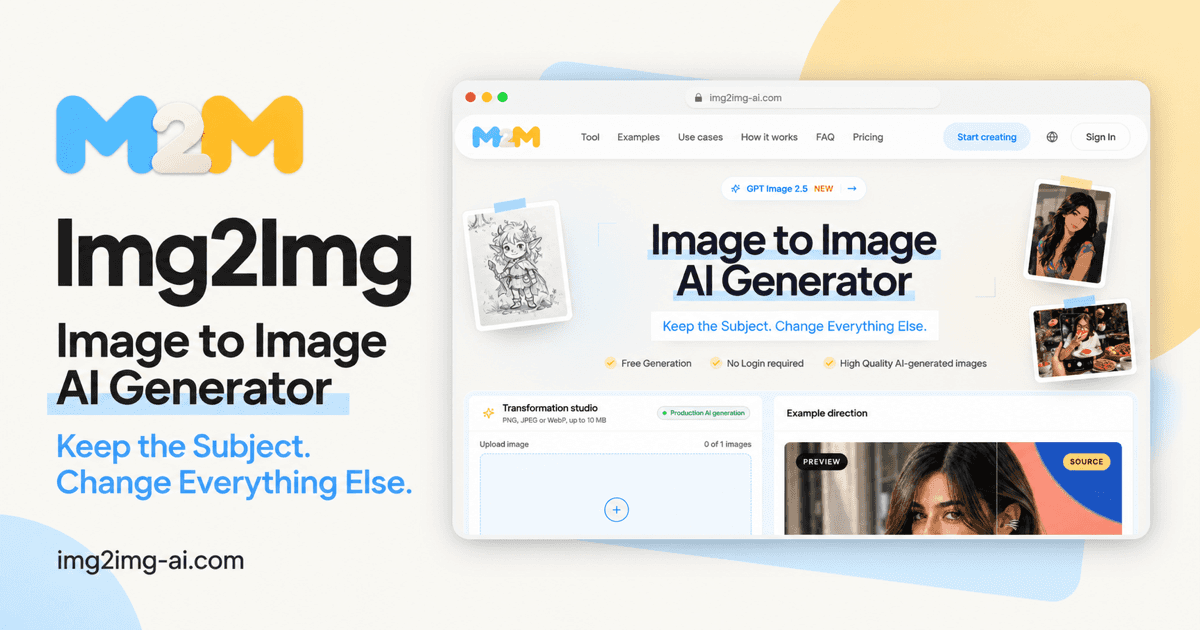
Img2Img studio
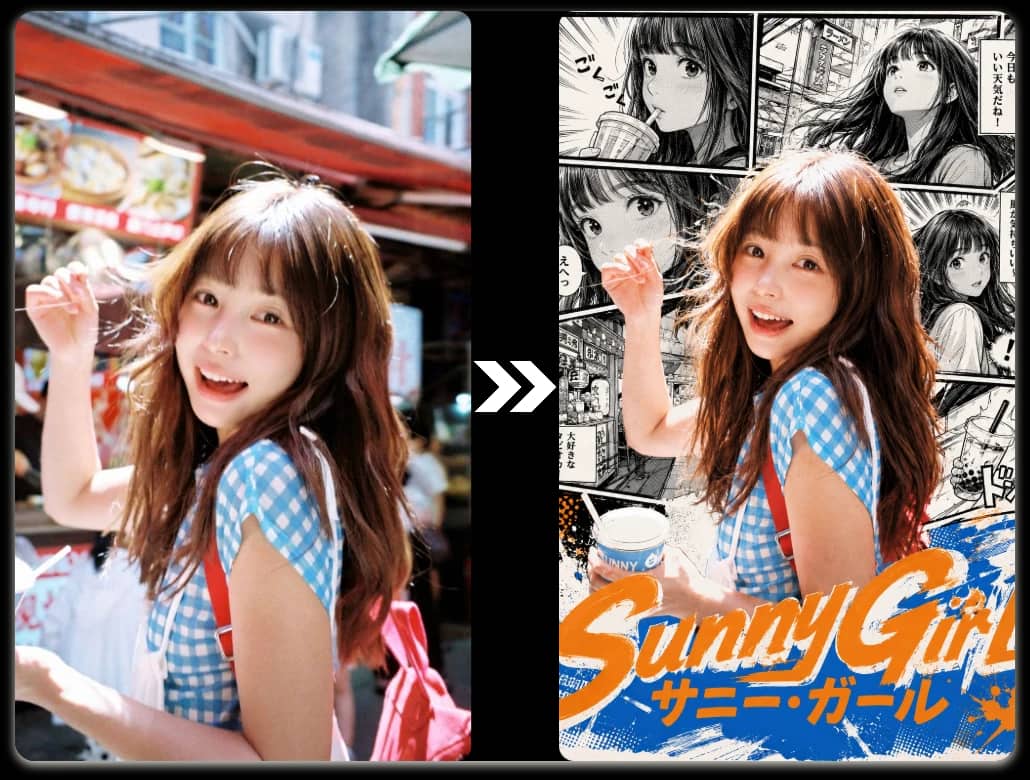
Style conversion
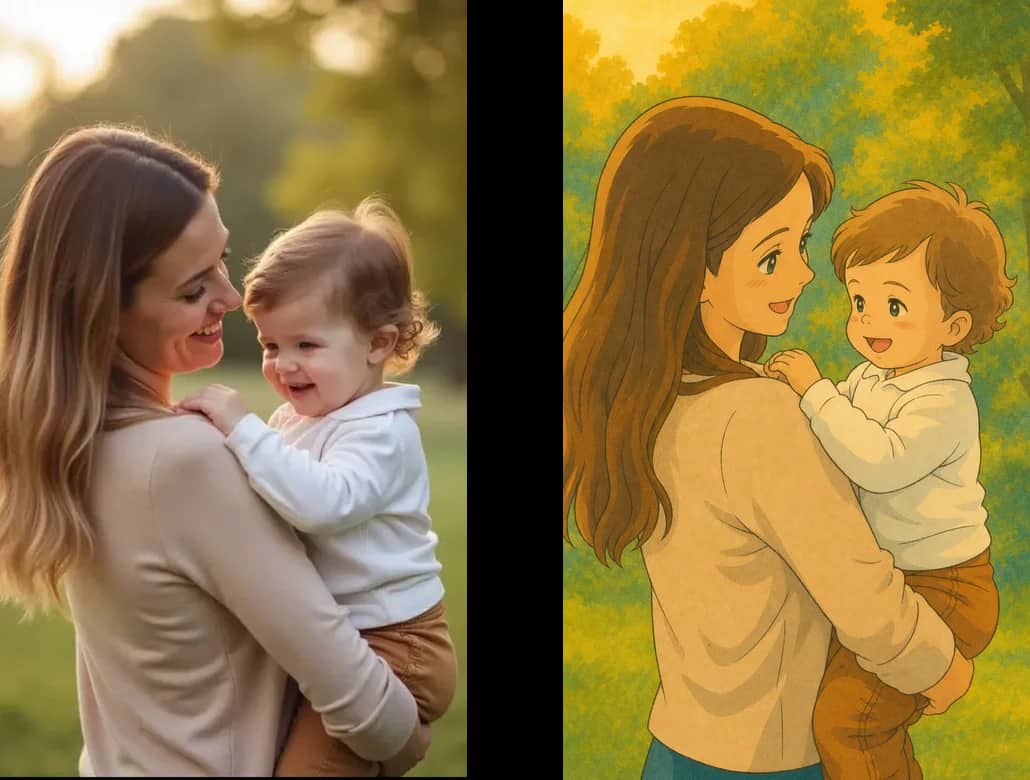
Ghibli style
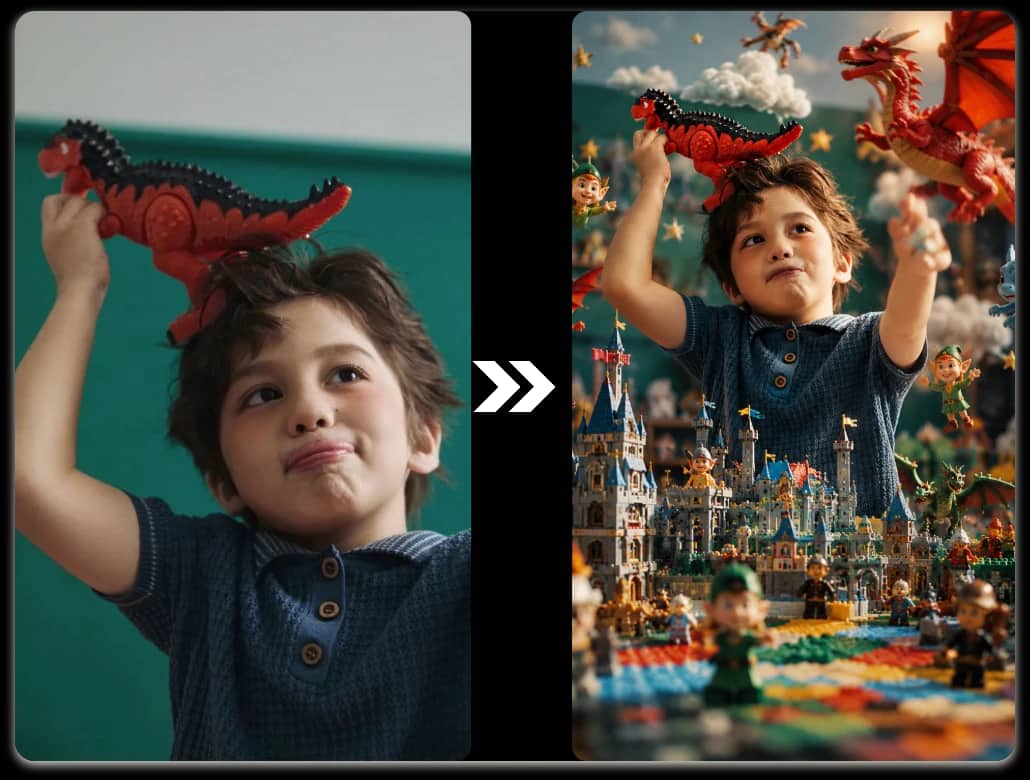
Scene expansion
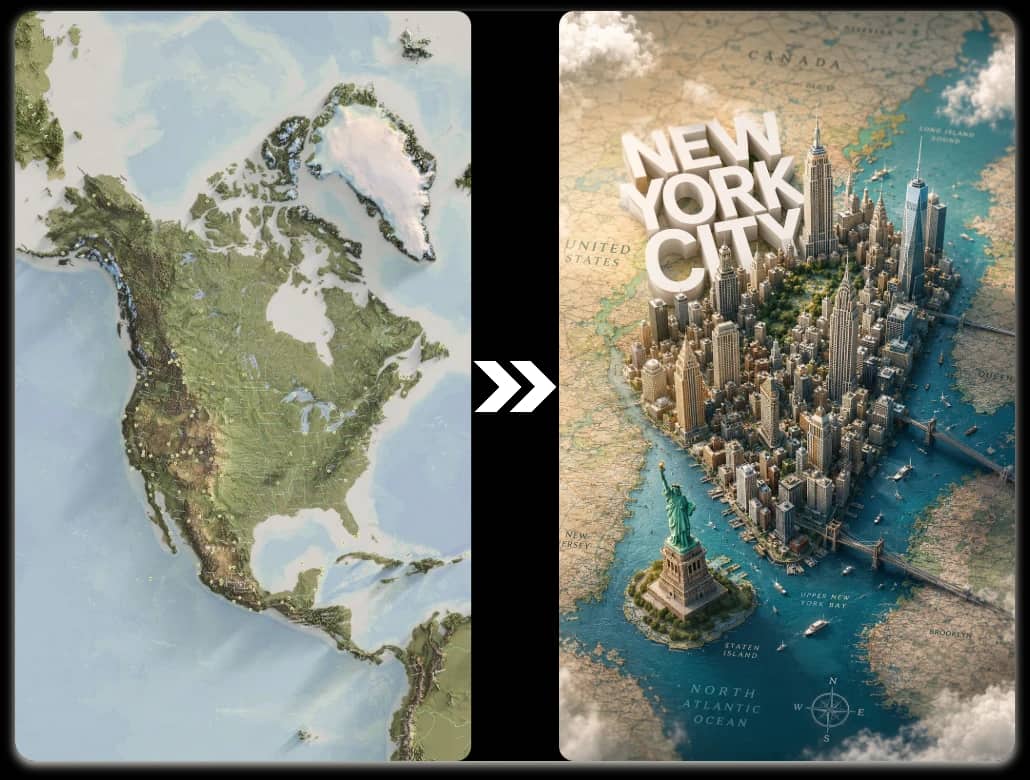
Concept expansion
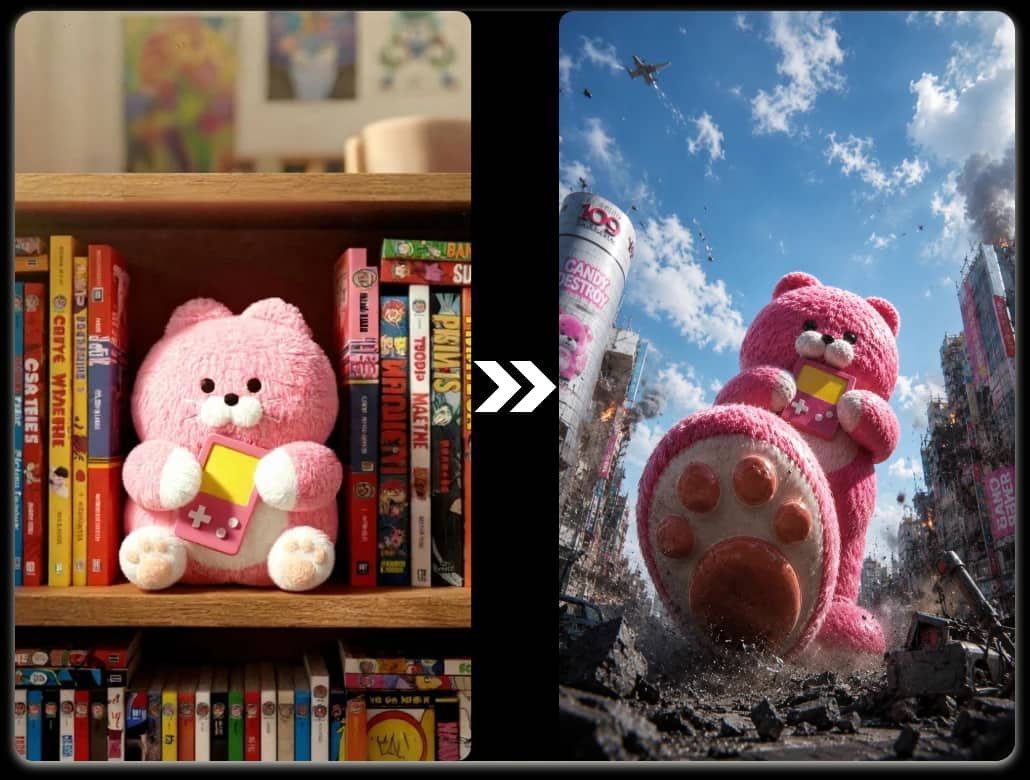
Scale shift
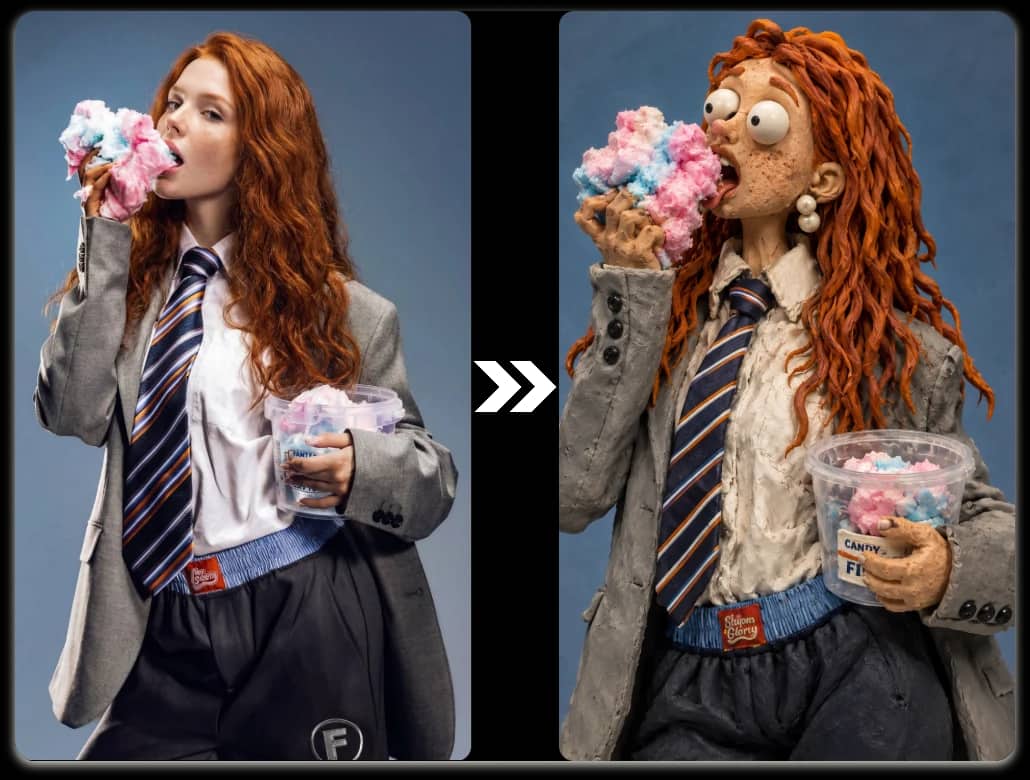
Material conversion
Four simple steps
Four steps keep the source, model, prompt, and result visible for each img to img revision.
Choose a clear photo, product shot, sketch, or illustration.
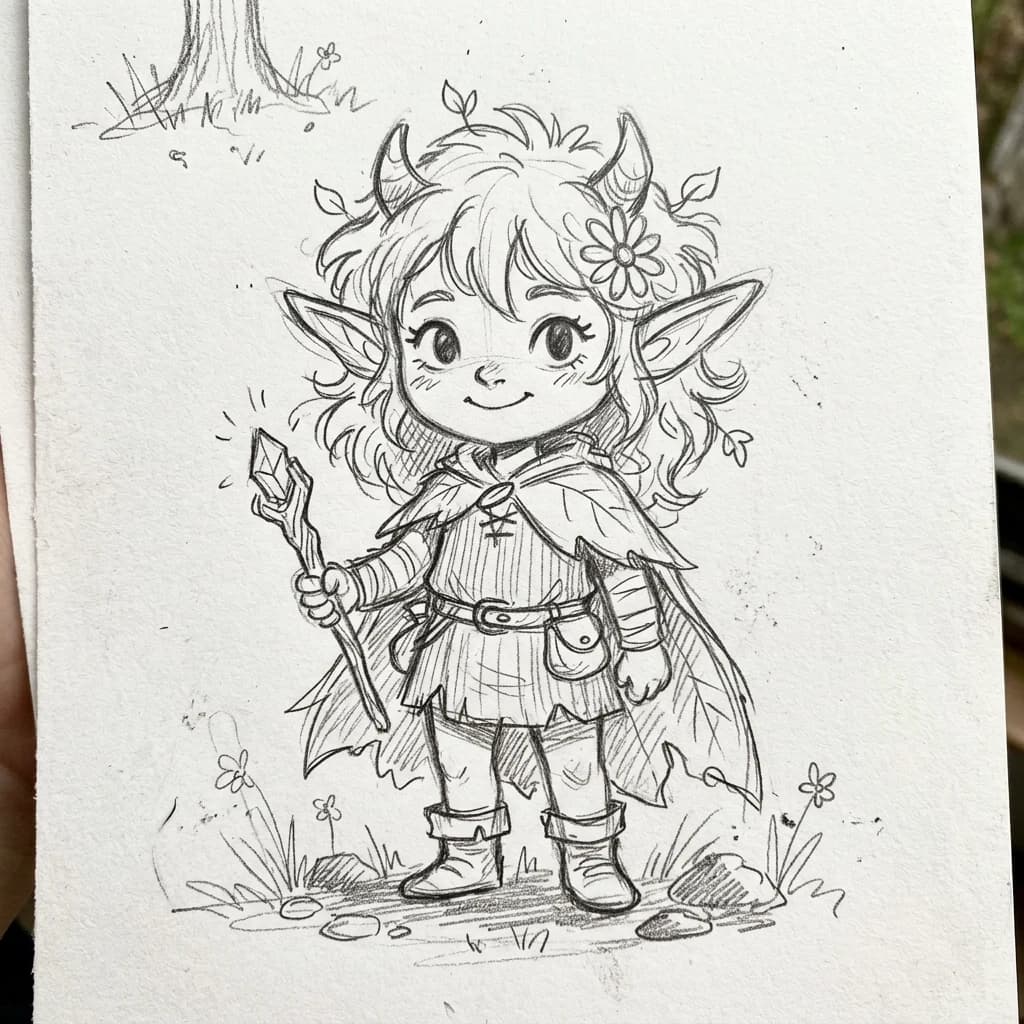
Whimsical fantasy illustration
Balance quality, style, and credit cost.
Preserve the character, horns, flower, staff, and outfit. Develop the sketch as a warm, detailed fantasy illustration.
Name what stays, describe the change, then choose an aspect ratio.
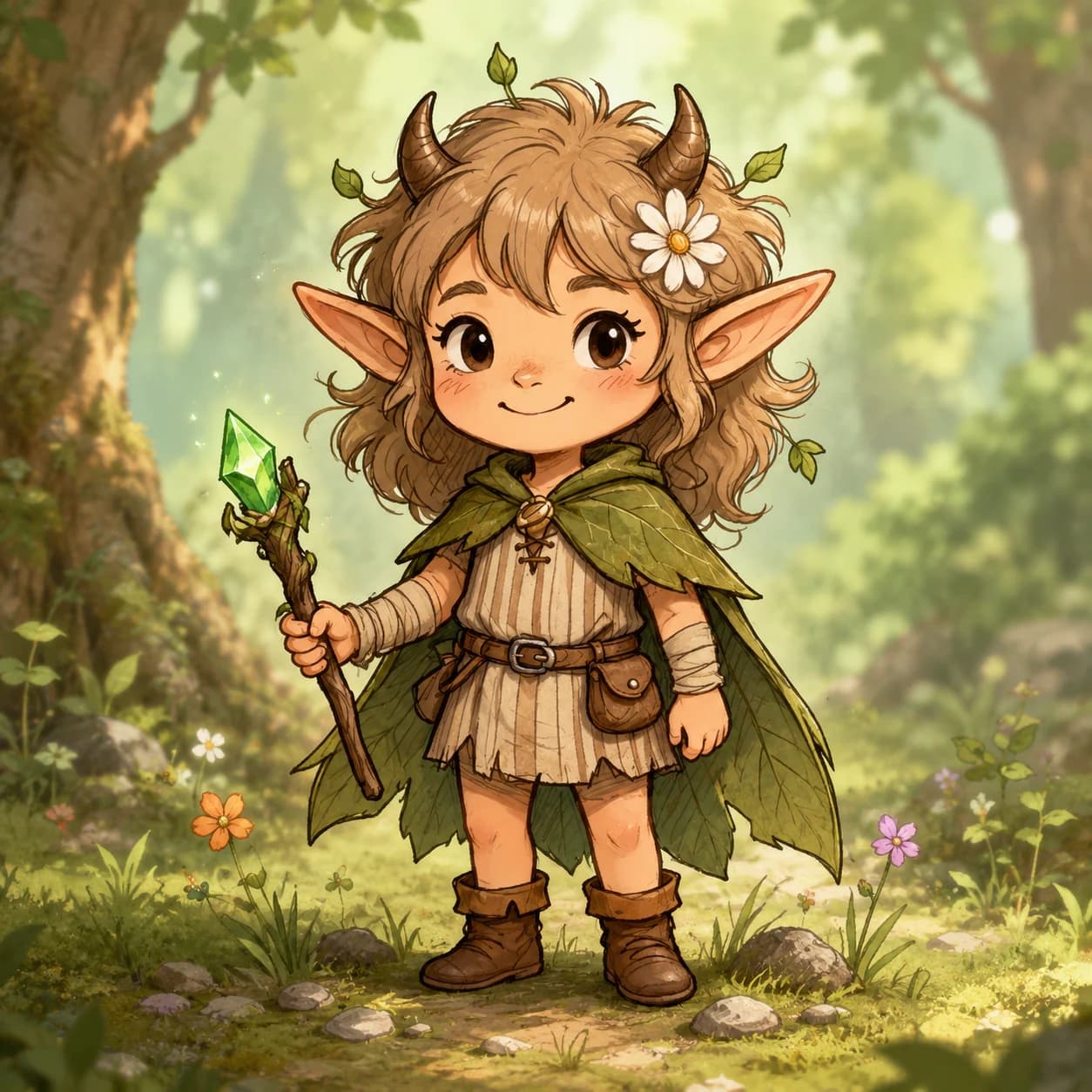
Compare with the source, then download or revise.
Source-guided generation
An image to image AI generator creates a new result from an uploaded image. By using the image as its starting point, it can preserve the subject, pose, shape, or composition you want while your prompt directs changes to lighting, material, setting, mood, or style.
Unlike text-to-image, img to img begins with visual evidence, helping a product shape, room layout, portrait pose, or sketch structure remain recognizable.
One image, three decisions
Preserve the visual anchor, direct one clear change, then review the result against the source.
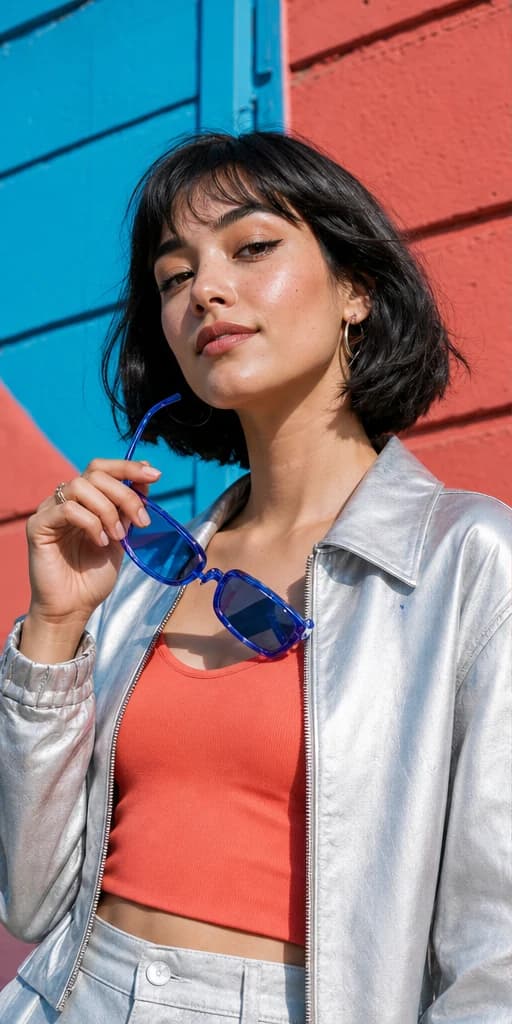
Name the subject, pose, layout, or angle to preserve.
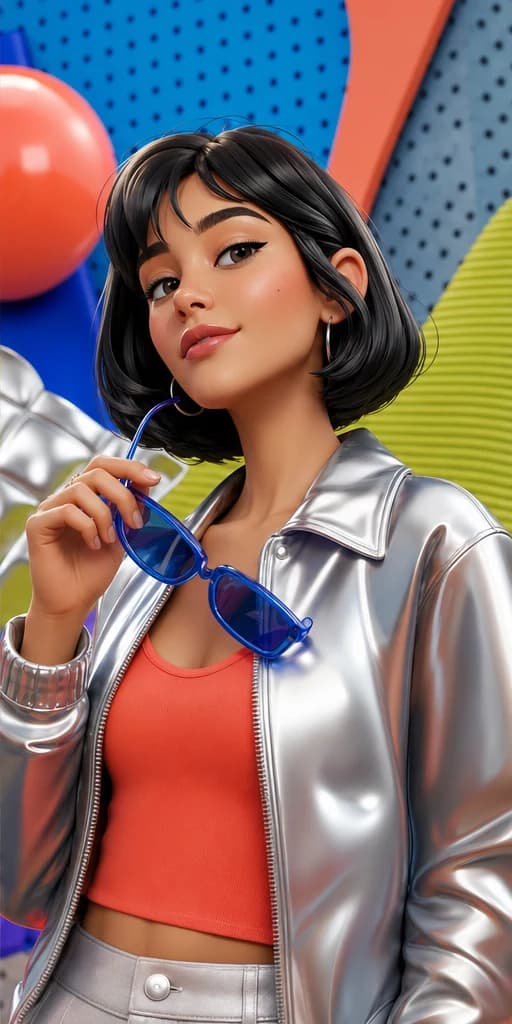
Describe the new light, material, setting, or treatment.
Check identity, anatomy, text, logos, and product details.
Before you publish
The source guides without locking the result. Review faces, hands, text, logos, and product details.
Use cases
Start with a product, portrait, room, sketch, or previous AI result. Each workflow shows what to preserve, what to change, and a prompt you can reuse.
Keep the product shape, label, and angle while testing new sets, campaign scenes, lighting, surfaces, and brand colors.
Keep identity and pose while testing editorial light, new environments, or stylized finishes. Review skin texture and facial details.
Hold the room layout and camera view steady while comparing materials, furniture, time of day, and atmosphere before production.
Develop line art or a blocked composition while preserving silhouette and layout. Change the medium, palette, texture, or realism using art you own or may use.
Use an AI image generator from image input to continue a previous result. Keep the subject and composition, then correct the background, lighting, or treatment.
Prompt guide
A strong img to img prompt names the visual anchor, then one concrete change to light, color, material, setting, camera treatment, or medium.
If the result drifts, lower strength and repeat the anchor. If it changes too little, raise strength or add one detail.
Start FreeChoose the right workflow
Many workflows use both: create a concept from text, then move it into an img to img workflow for focused revisions.
| Decision point | Choose image to image | Choose text-to-image |
|---|---|---|
| Starting point | An existing photo, sketch, render, or AI artwork. | A prompt with no required source. |
| What it preserves | Composition, subject, pose, silhouette, palette, or layout. | Prompted concepts and constraints. |
| Best tasks | Restyling, relighting, controlled variations, and revisions. | Open ideation, new subjects, and compositions. |
| Choose it when | The source has visual decisions worth keeping. | The model should invent the visual direction. |
Trust and usage boundaries
Use images you own or may edit. Review faces, hands, text, logos, and facts. Commercial use also depends on model terms and applicable rights.
Start FreeUpload PNG, JPEG, or WebP up to 10 MB and 8,192 pixels per side.
Sources are deleted 24 hours after completion; free outputs after 7 days and credit outputs after 30 days.
Try 1 free generation per UTC day without signing in. Verified accounts can use up to 2 total free generations; credit costs appear before generation.
Confirm source rights and model terms before commercial use.
Practical answers
Direct answers about free access, files, output, storage, control, and commercial use.
Yes. Img to img, img2img, and image-to-image name the same source-guided generation workflow.
An editor may target one area. An AI image generator from image input can reinterpret the full visual from source and prompt.
Yes. Guests can try GPT Image 2 Free once per UTC day without signing in. Verified accounts can use up to 2 total free generations; free access is also subject to abuse controls, IP limits, and daily service capacity. Credit models require an account.
Name what must stay recognizable, lower change strength, and compare every image to image result with the source.
Yes. Upload PNG, JPEG, or WebP files up to 10 MB and 8,192 pixels per side. Photos, product shots, sketches, and AI artwork work best when the subject is clear.
Generation time varies by model, queue, source image, and prompt, so the page shows live progress instead of a fixed promise. Most models currently return 1K output; supported Seedream formats reach up to 2,496 pixels on the long side.
Img2Img does not add a visible watermark, although a model may retain provenance metadata or invisible markers. Source files are deleted 24 hours after task completion, free outputs after 7 days, and paid outputs after 30 days.
Commercial use depends on your rights to the source, the selected model terms, and applicable law. Review logos, people, copyrighted material, and the final output before advertising, client work, merchandise, or paid distribution.
Keep the image. Change the direction.
Upload the source, describe the change, and use image to image controls to explore a result that still connects to your original idea.

